Resources

Track Your First Time Entry in TymzUp

TymzUp is built to keep the setup simple. You can go from a blank account to a saved entry and a usable report in a few practical steps.

What you'll do

Use this quick path when you want the minimum setup needed to start tracking time in TymzUp.

  • Create a project
  • Add a task if needed
  • Log time
  • Review your week
  • Run a report
Step by Step

The basic TymzUp workflow

These five steps cover the core path most small teams, consultants, and service businesses follow when setting up their first time entry.

1

Create a project

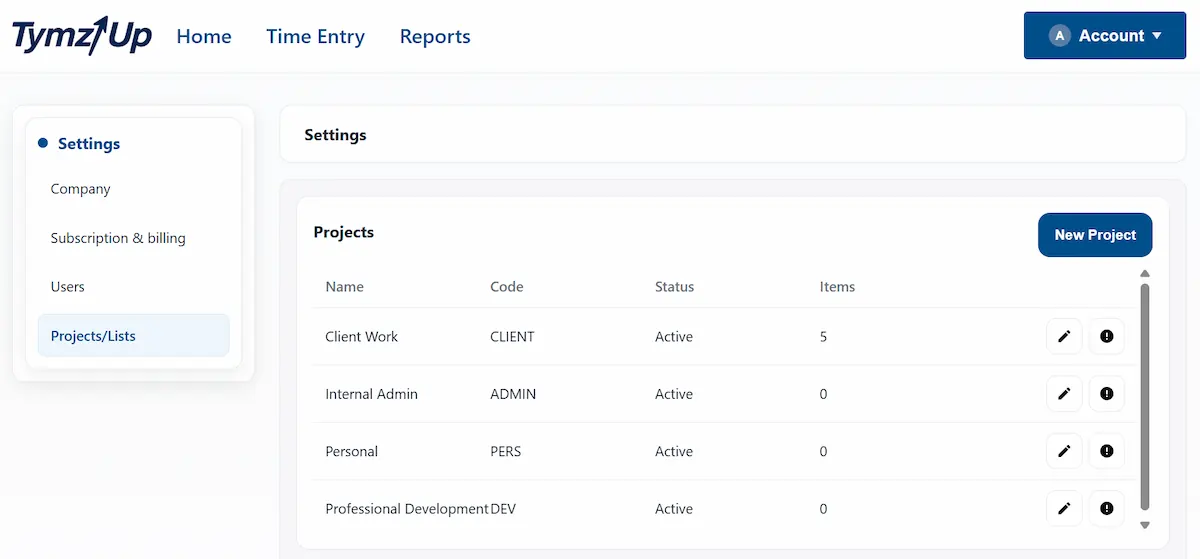
Go to Settings > Projects/Lists and click New Project. Your project might represent a client, internal work, admin work, or personal time.

Add a clear project name and, if useful, a project code. The code is optional, but it can help keep reporting organized later.

Projects and Lists settings in TymzUp with the New Project option
2

Add tasks or list items if needed

Tasks help organize time, but they are optional. If your workflow only needs project-level tracking, you can skip this and still log time.

In the List Items area, you can create categories such as Meetings, Development, Admin, Support, or Review to make reports easier to read.

Use tasks when they add clarity

  • Separate billable work from internal work
  • Group similar activity across a project
  • Keep reports simple for clients or management
3

Log your time

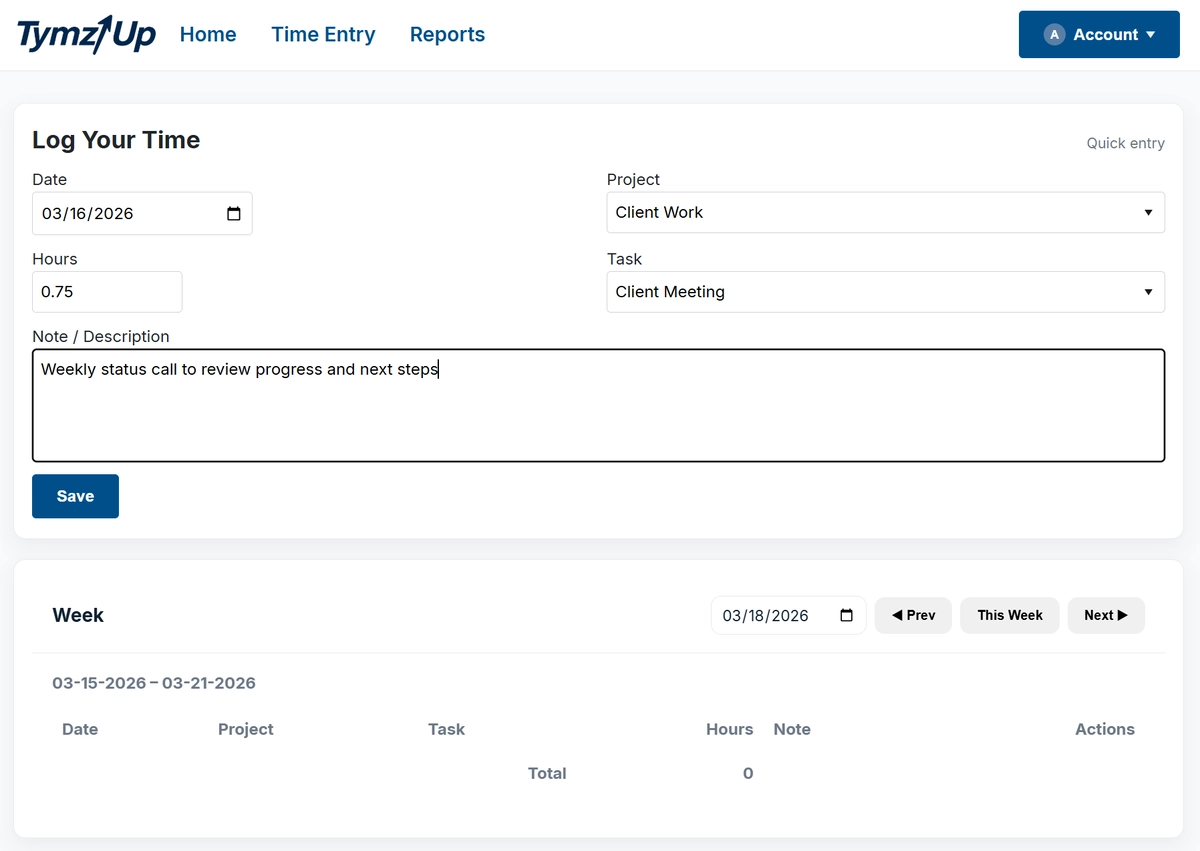
Go to Time Entry and complete the form using the fields already in the UI. This is where you create your first saved entry.

Date
The day the work happened.
Project
The project you created in Settings.
Task
Optional, depending on how your projects and list items are set up.
Hours
The amount of time you want to record.
Note / Description
Add context that will help later when reviewing reports or billing work.
TymzUp time entry form with project, task, hours, and note fields
4

Review your week

After saving an entry, use the weekly view to confirm the time was captured correctly and your totals look right for the week.

The dashboard summary and weekly table make this a quick check. The goal is simple: confirm your work is recorded before you move on.

Weekly review mindset

A short review at the end of the week helps catch missing entries, confirm totals, and keep reporting clean.

5

Run your first report

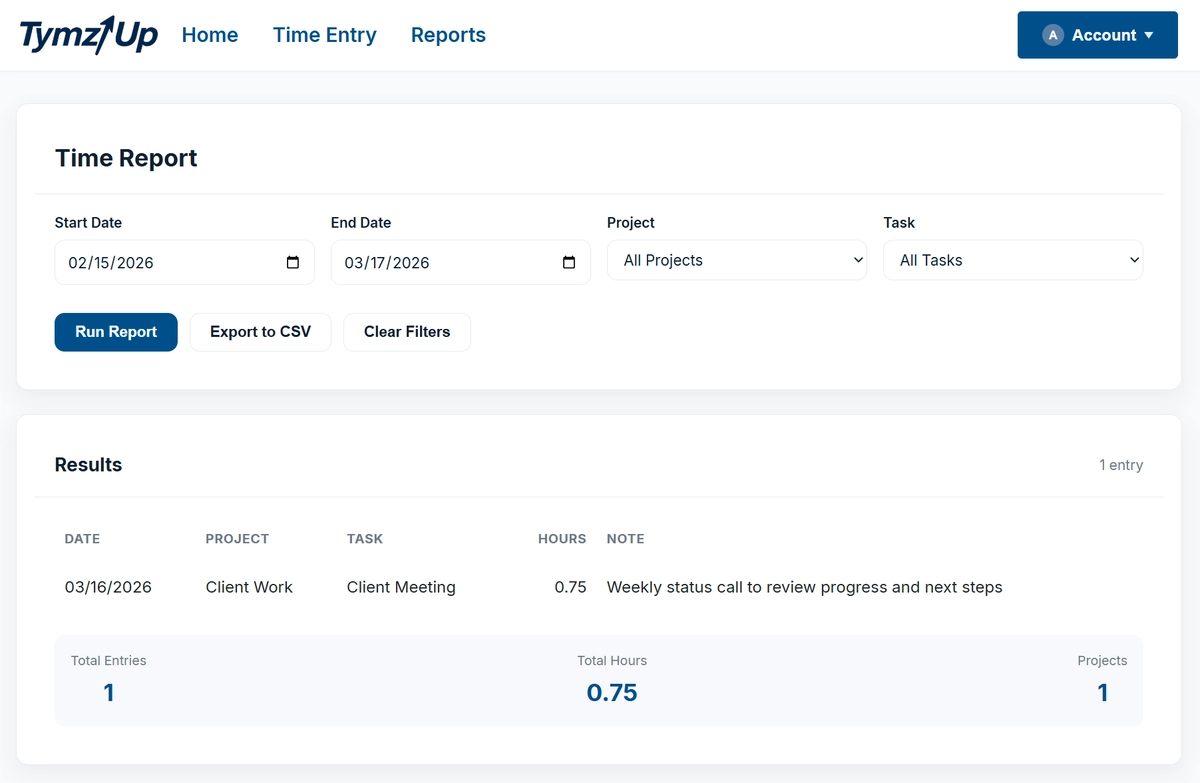
Go to Reports, choose a date range, and adjust scope, project, and task filters as needed.

Reports help you review work, validate time, and support billing or export workflows once you are ready to share or invoice your hours.

TymzUp reports page showing filters and weekly time reporting
Simple Example

A realistic first entry

Project
Client Work
Task
Discovery
Time Entry
2.5 hours
Note
Kickoff meeting and requirements review
In your reports

When that consultant runs a report for the week, the entry appears with the project, task, hours, and note in one place. That makes the work easy to review, validate, and bill later.

You only need one saved entry to learn the core workflow

Once you have a project and one saved entry, you already have the core TymzUp workflow in place.

Back to resources